> For the complete documentation index, see [llms.txt](https://docs.pay.io/llms.txt). Markdown versions of documentation pages are available by appending `.md` to page URLs; this page is available as [Markdown](https://docs.pay.io/getting-started/setting-up-2fa-two-factor-authentication.md).
# Setting up 2FA - Two-Factor Authentication
Security is paramount when managing treasury funds and compliance data. To protect your Pay.io account from unauthorised access, we require Two-Factor Authentication (2FA). This adds a second layer of defence by requiring a time-sensitive code from your mobile device in addition to your password.
This guide uses Google Authenticator as an example, though the steps are similar for other supported apps like Microsoft Authenticator or FreeOTP.
***
### Prerequisites
Before proceeding on the Pay.io platform, please ensure you have the authenticator app installed on your mobile device:
* iOS Users: Download "Google Authenticator" from the Apple App Store.
* Android Users: Download "Google Authenticator" from the Google Play Store.
***
### Configuration Steps
{% stepper %}
{% step %}
#### Initiate 2FA Setup
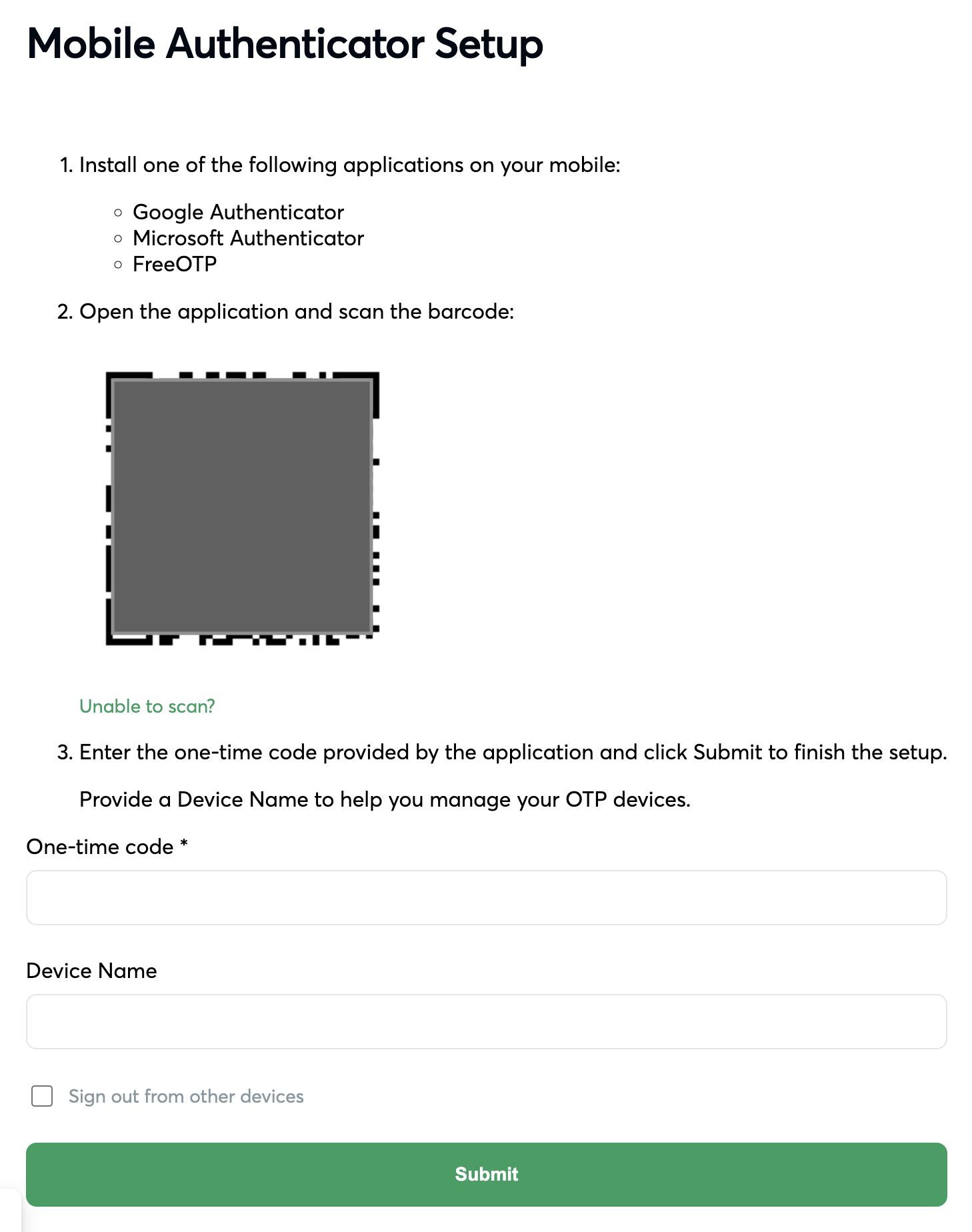
During your initial account setup, the Pay.io platform will display a specific QR Code on your screen.
{% endstep %}
{% step %}
#### Open the Authenticator App
Open the Authenticator App Launch the Google Authenticator app on your mobile device.
2.1 Tap the + (Plus) icon, usually located at the bottom right of the screen.
2.2 Select Scan a QR code.
{% endstep %}
{% step %}
#### Link Your Device
Point your mobile device’s camera at the QR code displayed on your computer screen. The app will automatically scan the code and add your Pay.io account to its list.
{% endstep %}
{% step %}
#### Enter the Verification Code
Once scanned, the app will generate a 6-digit code that changes every 30 seconds.
4.1 Locate the code labelled Pay.io (or the email address associated with your account) within the app.
4.2 Enter this 6-digit code into the Verification Code field on the Pay.io screen.
4.3 Click Verify or Enable.
{% endstep %}
{% step %}
#### Confirmation
You will see a success message confirming that 2FA is now active. You will now be required to open your app and enter a new code each time you log in.
{% endstep %}
{% endstepper %}
---
# Agent Instructions
This documentation is published with GitBook. GitBook is the documentation platform designed so that both humans and AI agents can read, navigate, and reason over technical content effectively. Learn more at gitbook.com.
## Querying This Documentation
If you need additional information that is not directly available in this page, you can query the documentation dynamically by asking a question.
Perform an HTTP GET request on the current page URL with the `ask` query parameter, and the optional `goal` query parameter:
```
GET https://docs.pay.io/getting-started/setting-up-2fa-two-factor-authentication.md?ask=&goal=
```
`ask` is the immediate question: it should be specific, self-contained, and written in natural language.
`goal` is optional and describes the broader end goal you are ultimately trying to accomplish on behalf of the user. GitBook uses it to tailor the answer towards what is most useful for that goal.
The response will contain a direct answer to the question and relevant excerpts and sources from the documentation.
Use this mechanism when the answer is not explicitly present in the current page, you need clarification or additional context, or you want to retrieve related documentation sections.