> For the complete documentation index, see [llms.txt](https://docs.pay.io/llms.txt). Markdown versions of documentation pages are available by appending `.md` to page URLs; this page is available as [Markdown](https://docs.pay.io/assets/hot-wallet.md).
# Hot Wallet
Managing Your Daily Operational Liquidity
In Pay.io, we offer **a two-wallet system** — **Hot Wallet** and **Treasury Wallet**.
* **Hot Wallet** contains your assets with active deposited funds. This is what is used to operate your Cashier UI and Payment Gateway to support user's withdrawals and gather their deposits as well as support floats. Hot Wallets can have **sweeps to Treasury Wallet**, with special configurations for **withdrawal limits** and **balance alerts**.
* **Treasury Wallet** acts as a “safe vault”, where the funds from your Hot Wallet are sent or swept to. **This wallet is in your custody, not Pay.io's**. You can always transfer funds from Treasury Wallet to your Hot Wallet.
Your Hot Wallet is the engine of your daily transaction flows. It is designed to hold the active deposited funds required to operate your Cashier UI, process user withdrawals, and gather incoming deposits.
### What's In My Hot Wallet
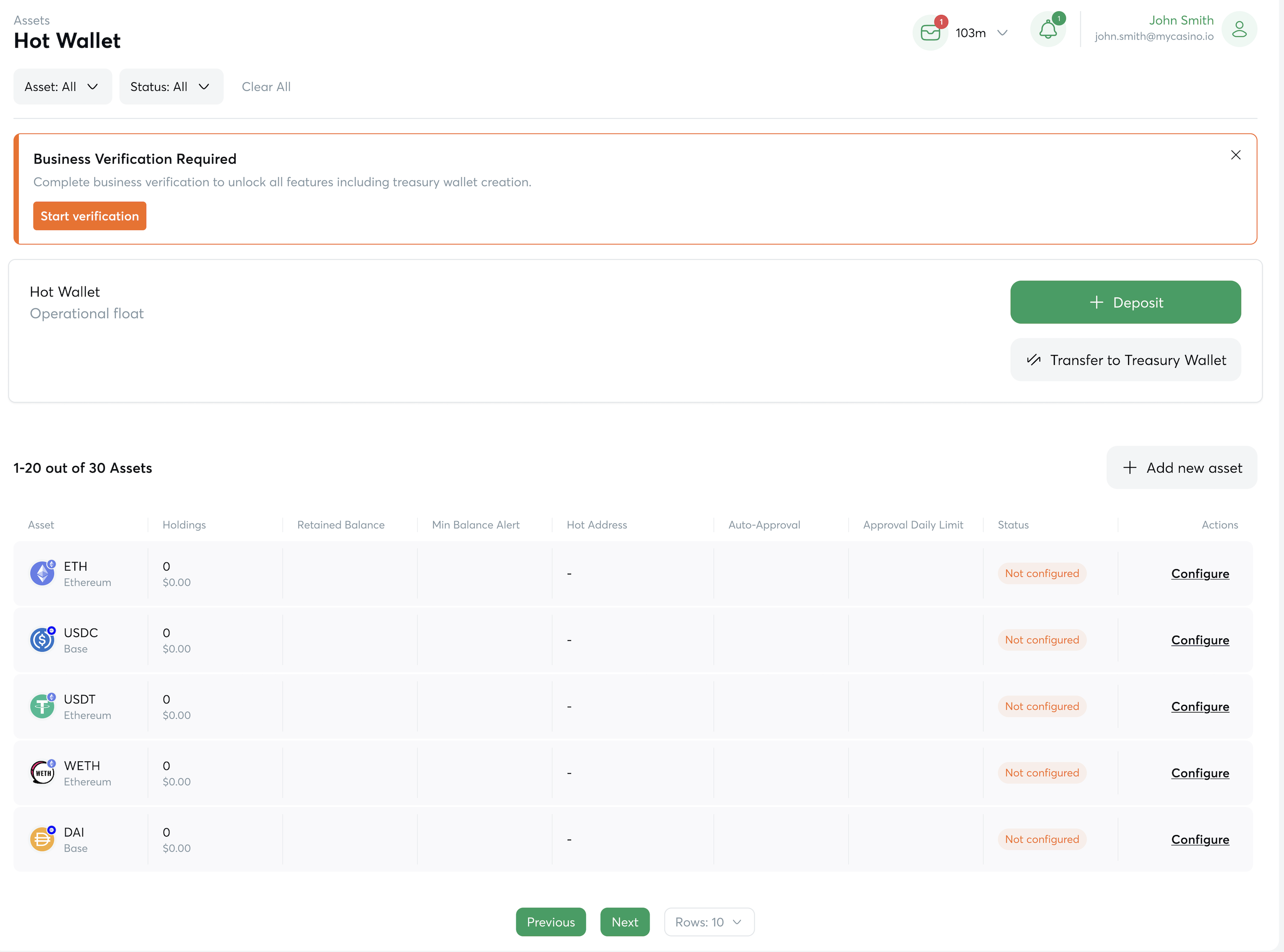
Hot Wallet view after first log-in
The Hot Wallet interface allows you to perform three primary operational tasks:
* **Deposit funds** by manually depositing any supported asset currency directly into your Hot Wallet to ensure you have enough float to cover user payouts. Read [how to make a deposit](/assets/making-a-deposit.md).
* **Make transfer to Treasury Wallet** as you can move funds out of your Hot Wallet and into your secure Treasury Wallet. Because the Treasury Wallet is under your direct custody, this action is vital for protecting your profits and sustaining safe liquidity levels. Read [how to make a transfer](/assets/treasury-wallet/transfer-from-hot-wallet-to-treasury-wallet.md).
* **Monitor Operational Float** by using the Hot Wallet dashboard, which provides a high-level view of your total wallet balances. The detailed table view breaks down all existing assets, so you always know exactly what funds are available. See more about[ managing an operational float](/assets/float-set-up-and-maintenance.md).
### Asset Overviews
The main table in the Hot Wallet dashboard gives you a granular, row-by-row overview of every asset you hold. For each asset, you can view:
| Asset information | Description |
| ---------------------- | --------------------------------------------------------------------------------------------------------------------------------------------------------------------------------------------------------------------------------------------------------------------------------------------------------------------------------------------------------------------------------------------------------------------------------------------------------------------------------------------------------------------------------------------------------------------------------------------------------------------------------------------------------------------------------------------------------------------------------------------------------------------- |
| Asset | Asset displayed with its base network, showcasing the specific cryptocurrency (e.g., ETH) and the blockchain it resides on (e.g., Ethereum). |
| Holdings | Holding amount is displayed with the exact token balance, alongside an estimated corresponding value in a fiat currency (usually USD) for easier accounting. |
| Retained Balance | The target amount of funds to keep in the Hot Wallet. This reflects the maximum retained balance amount you defined when setting up your [Sweep configurations](/assets/setting-up-sweeps-and-alerts.md#setting-up-sweeps-and-alerts). |
| Minimum Balance Alert | The threshold at which the system will notify you that operational funds are running low, this is also defined when setting up your [Sweep configurations](/assets/setting-up-sweeps-and-alerts.md#setting-up-sweeps-and-alerts). |
| Hot Wallet Address | The unique blockchain address used to receive funds for this specific asset. |
| User Withdrawal Limits | A quick view of your active Auto-Approval limits and Daily Quotas for user withdrawals which you set up in [User Withdrawal Limits](/assets/user-withdrawal-limits.md). |
| Status |
The current operational state of the asset. Possible values:
ENABLED: A connection exists to a configured Treasury Wallet, and the asset is fully operational for users.
DISABLED: The asset has been turned offforusers in the Cashier UI and Payment Gateway (withdrawals and deposits can't be made for this asset by the users). In the Merchant Console, you'll still see the asset as it is configured in Hot Wallet, and also a Treasury Wallet exist for it.
TREASURY WALLET REQUIRED: You cannot use this asset yet. A connection to a Treasury Wallet must be set up before this asset can process funds.
|
### Asset Management
Using the "Actions" menu at the end of the asset table, you can easily Add, Edit, or Disable assets as your business needs evolve. Under the "Edit" button, you'll be able to [set up sweeps and low balance alerts](/assets/setting-up-sweeps-and-alerts.md) as well as [user withdrawal limits](/assets/user-withdrawal-limits.md). Click on the links to learn more about how to do so.
---
# Agent Instructions
This documentation is published with GitBook. GitBook is the documentation platform designed so that both humans and AI agents can read, navigate, and reason over technical content effectively. Learn more at gitbook.com.
## Querying This Documentation
If you need additional information that is not directly available in this page, you can query the documentation dynamically by asking a question.
Perform an HTTP GET request on the current page URL with the `ask` query parameter, and the optional `goal` query parameter:
```
GET https://docs.pay.io/assets/hot-wallet.md?ask=&goal=
```
`ask` is the immediate question: it should be specific, self-contained, and written in natural language.
`goal` is optional and describes the broader end goal you are ultimately trying to accomplish on behalf of the user. GitBook uses it to tailor the answer towards what is most useful for that goal.
The response will contain a direct answer to the question and relevant excerpts and sources from the documentation.
Use this mechanism when the answer is not explicitly present in the current page, you need clarification or additional context, or you want to retrieve related documentation sections.