> For the complete documentation index, see [llms.txt](https://docs.pay.io/llms.txt). Markdown versions of documentation pages are available by appending `.md` to page URLs; this page is available as [Markdown](https://docs.pay.io/assets/asset-management-add-edit-disable.md).
# Asset Management (Add, Edit, Disable)
### What are Assets?
The Pay.io Merchant Console allows you to transact with a wide variety of digital currencies. To help you manage your treasury strategy effectively, these assets are generally categorised into two primary types: Cryptocurrencies and Stablecoins.
{% hint style="info" %}
See full list of available assets with supported networks in [List of Available Assets](/assets/asset-management-add-edit-disable/list-of-available-assets.md).
{% endhint %}
#### Cryptocurrencies (Native Coins)
These are the native assets of major blockchain networks. They are typically used by players who hold specific crypto portfolios and prefer to bet or transact without converting to fiat-pegged tokens.
These assets are subject to market volatility. Their value against your base currency (e.g., EUR or USD) can fluctuate based on market supply and demand. When managing these assets in your Hot Wallet, you may need to adjust your Auto-Approval limits more frequently to account for significant price changes. Alternatively, the merchant admin can [set limits in Fiat with automatic FX rates](/assets/user-withdrawal-limits.md) to maintain limits independently of market fluctuations for cryptocurrencies.
* Supported Assets:
* Bitcoin (BTC)
* Ethereum (ETH)
* Solana (SOL)
* TON (The Open Network)
* TRX (Tron)
#### Stablecoins
Stablecoins are digital tokens designed to maintain a consistent value by being pegged to a fiat currency, most commonly the US Dollar. These assets offer the speed and security of blockchain transactions without the price volatility. They are ideal for operators who want to minimise exchange rate risk during the deposit and withdrawal process.
Stablecoins are often available across multiple networks (e.g., USDT on Ethereum, Tron, and Polygon). This allows you to choose networks with lower gas fees or faster confirmation times for your players.
* Supported Assets:
* Dai (DAI)
* Tether (USDT)
* USD Coin (USDC)
***
## Adding new Assets
{% stepper %}
{% step %}
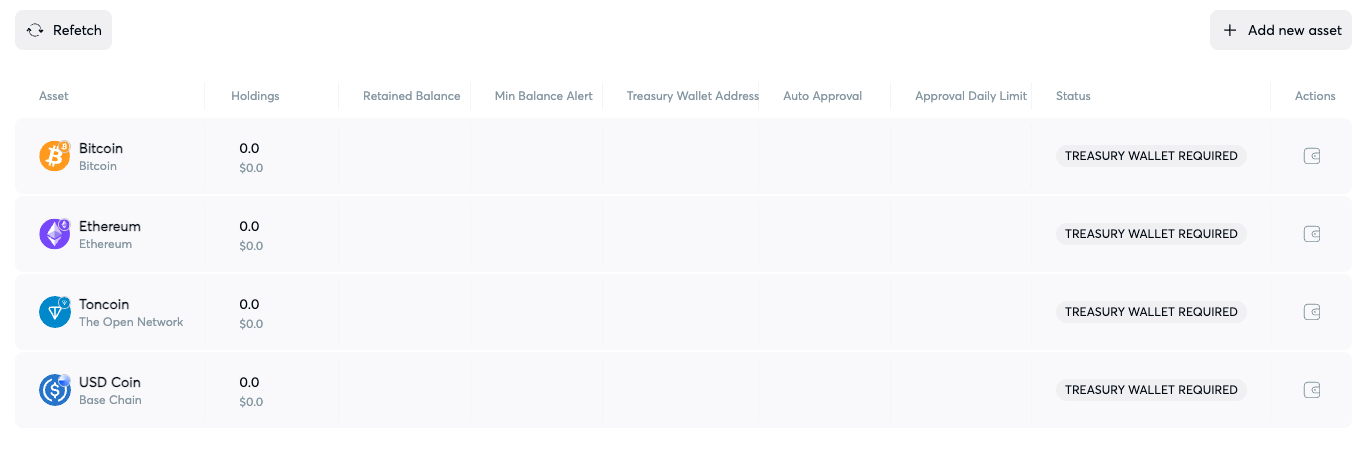
To add a new asset, navigate to **Hot Wallet** page. You should see a similar view with existing assets chosen during your onboarding.
{% endstep %}
{% step %}
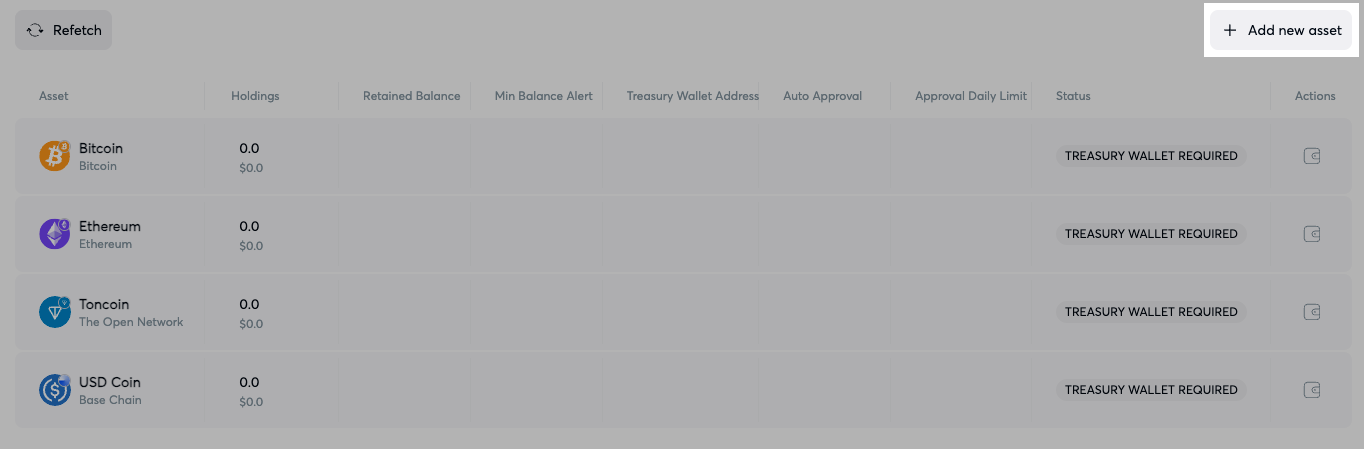
Locate the **“+Add new asset”** button at the top right corner of the table view and click it.
{% endstep %}
{% step %}
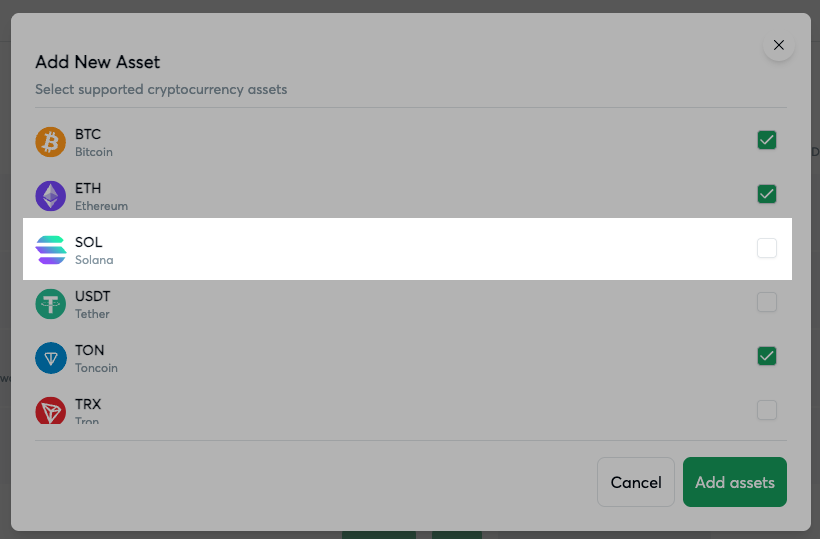
In the new pop-over, select the cryptocurrency asset you wish to **add** **by** **ticking** **the** **box** at the end of the row. The box must appear with a green check mark as shown for already selected assets. Now, click the **“Add assets”** button.
You may need to scroll a bit as there are many options.
If you don't see the asset you wish to add, please contact your account manager.
{% endstep %}
{% step %}
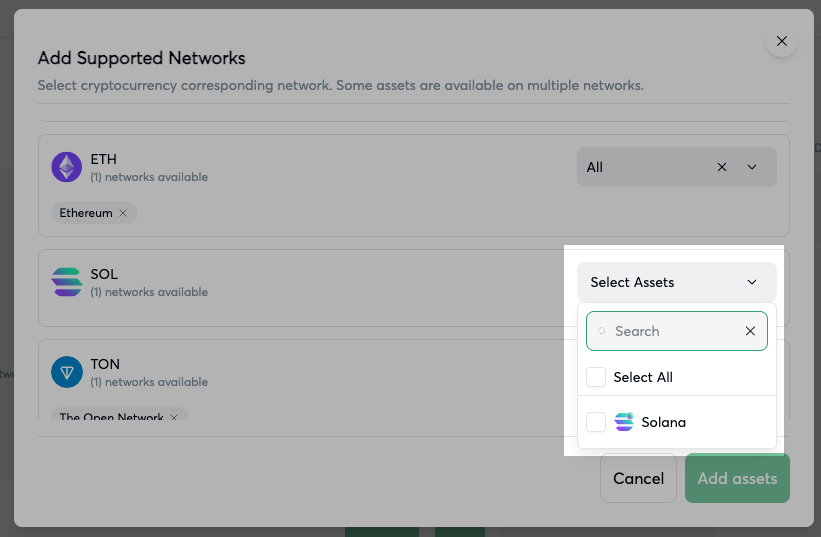
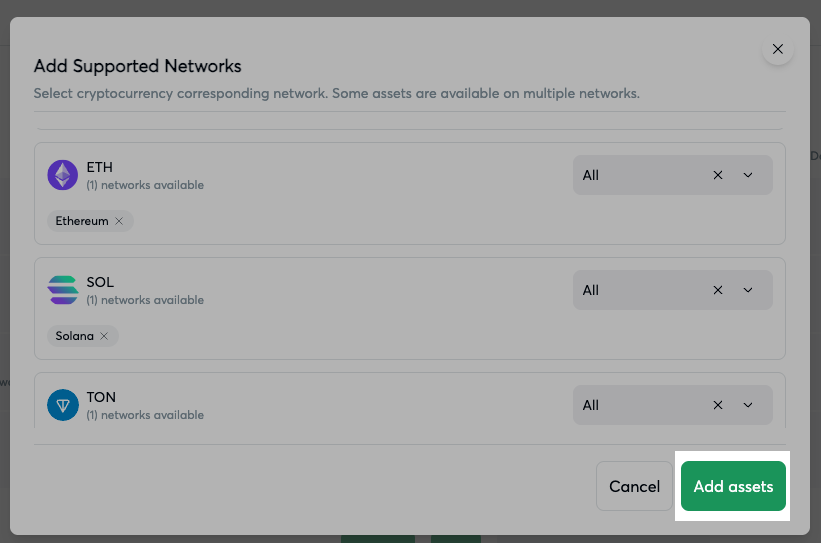
After choosing the asset, you can specify which **corresponding** **network**(s) you wish to have the asset available in.
{% hint style="info" %}
Learn more about what are asset networks and which to choose in [Asset Networks](/assets/asset-management-add-edit-disable/asset-networks.md).
{% endhint %}
{% endstep %}
{% step %}
After ticking all needed networks, you can see them available under the asset. To finish, click on **“Add assets”** button.
{% endstep %}
{% step %}
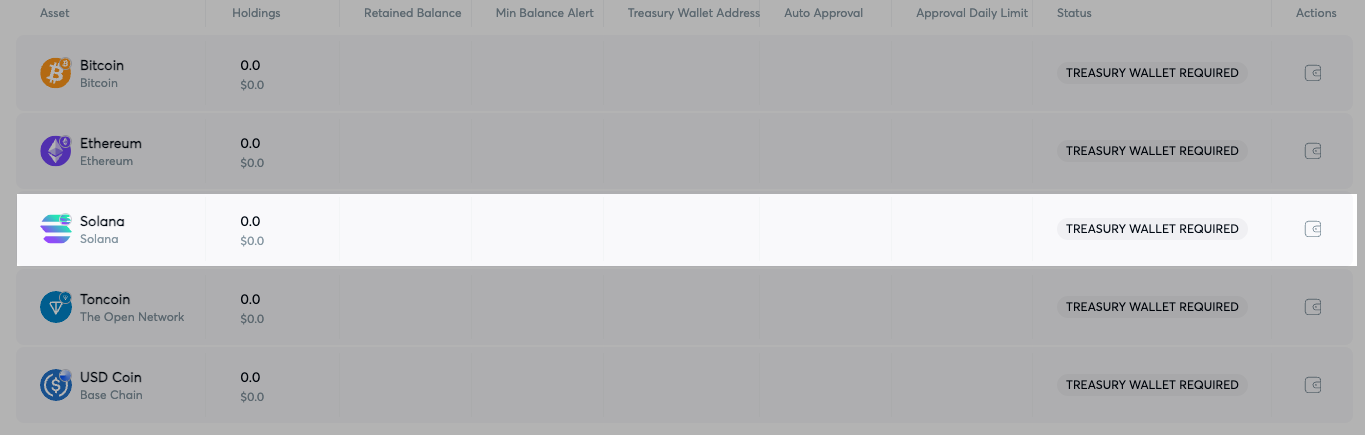
You can see the newly added asset in your Hot wallet table view. Now you can continue to make a deposit or edit the asset.
{% endstep %}
{% endstepper %}
***
## Editing an Asset
Once the asset has been added (in hot-wallet), and the corresponding Treasury-wallet has been created for it, then the Hot-wallet asset can be configured.
Once the preliminary assets have been added to your Hot Wallet through onboarding, a corresponding Treasury Wallet needs to be created. If both of these actions have been completed, then the Hot Wallet assets can be configured.
You'll be able to edit and configure assets from the “Actions” column. You'll be able to:
* Edit [Sweep and Alert Configuration for Crypto](/assets/setting-up-sweeps-and-alerts.md#setting-up-sweeps-and-alerts)
* Edit [Sweep and Alert Configuration for Fiat](/assets/setting-up-sweeps-and-alerts.md#setting-up-sweeps-and-alerts)
* Edit [User Withdrawal Configuration for Crypto](/assets/user-withdrawal-limits.md#expand-the-user-withdrawal-configuration-section)
* Edit [User Withdrawal Configuration for Fiat](/assets/user-withdrawal-limits.md#expand-the-user-withdrawal-configuration-section)
Each of those will be done for the **selected asset**. Editing multiple assets at once is currently not possible.
***
## Disabling an Asset
Disabling an asset will remove its availability in the Payment Gateway and Cashier UI.
You can disable an asset only once it has been configured and enabled.
{% stepper %}
{% step %}
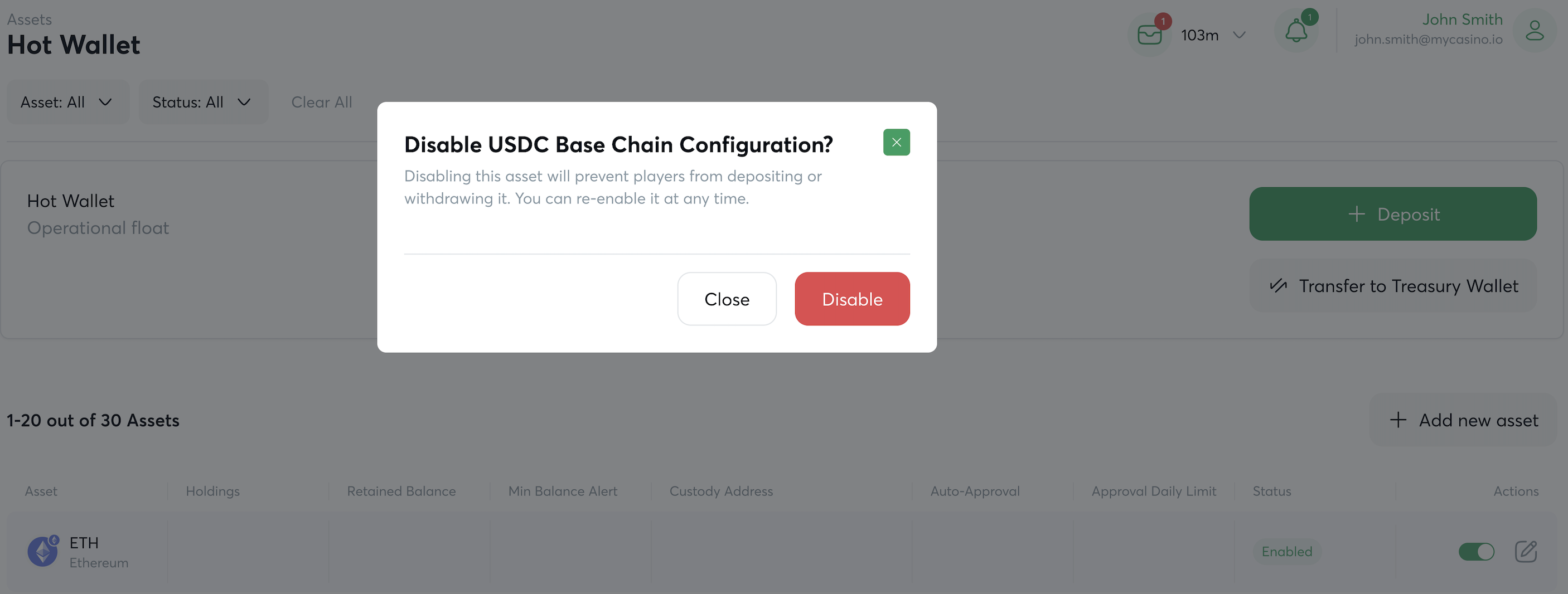
To disable an asset, go to **Hot Wallet** page, find the asset you wish to disable and **click** on the **toggle** under the **Actions** menu.
{% endstep %}
{% step %}
A pop-up will appear, where you can confirm by clicking the **“Disable”** button if you wish to disable the asset. Once the asset is disabled, it will appear with a new status (“disabled”) and the toggle will appear gray.
{% endstep %}
{% endstepper %}
---
# Agent Instructions
This documentation is published with GitBook. GitBook is the documentation platform designed so that both humans and AI agents can read, navigate, and reason over technical content effectively. Learn more at gitbook.com.
## Querying This Documentation
If you need additional information that is not directly available in this page, you can query the documentation dynamically by asking a question.
Perform an HTTP GET request on the current page URL with the `ask` query parameter, and the optional `goal` query parameter:
```
GET https://docs.pay.io/assets/asset-management-add-edit-disable.md?ask=&goal=
```
`ask` is the immediate question: it should be specific, self-contained, and written in natural language.
`goal` is optional and describes the broader end goal you are ultimately trying to accomplish on behalf of the user. GitBook uses it to tailor the answer towards what is most useful for that goal.
The response will contain a direct answer to the question and relevant excerpts and sources from the documentation.
Use this mechanism when the answer is not explicitly present in the current page, you need clarification or additional context, or you want to retrieve related documentation sections.