> For the complete documentation index, see [llms.txt](https://docs.pay.io/llms.txt). Markdown versions of documentation pages are available by appending `.md` to page URLs; this page is available as [Markdown](https://docs.pay.io/getting-started/creating-an-account.md).
# Creating an Account
Now that our team has provisioned your environment, you can proceed with the initial login and security configuration.
Follow these steps to activate your account and secure your access.
#### The Setup Flow
{% stepper %}
{% step %}
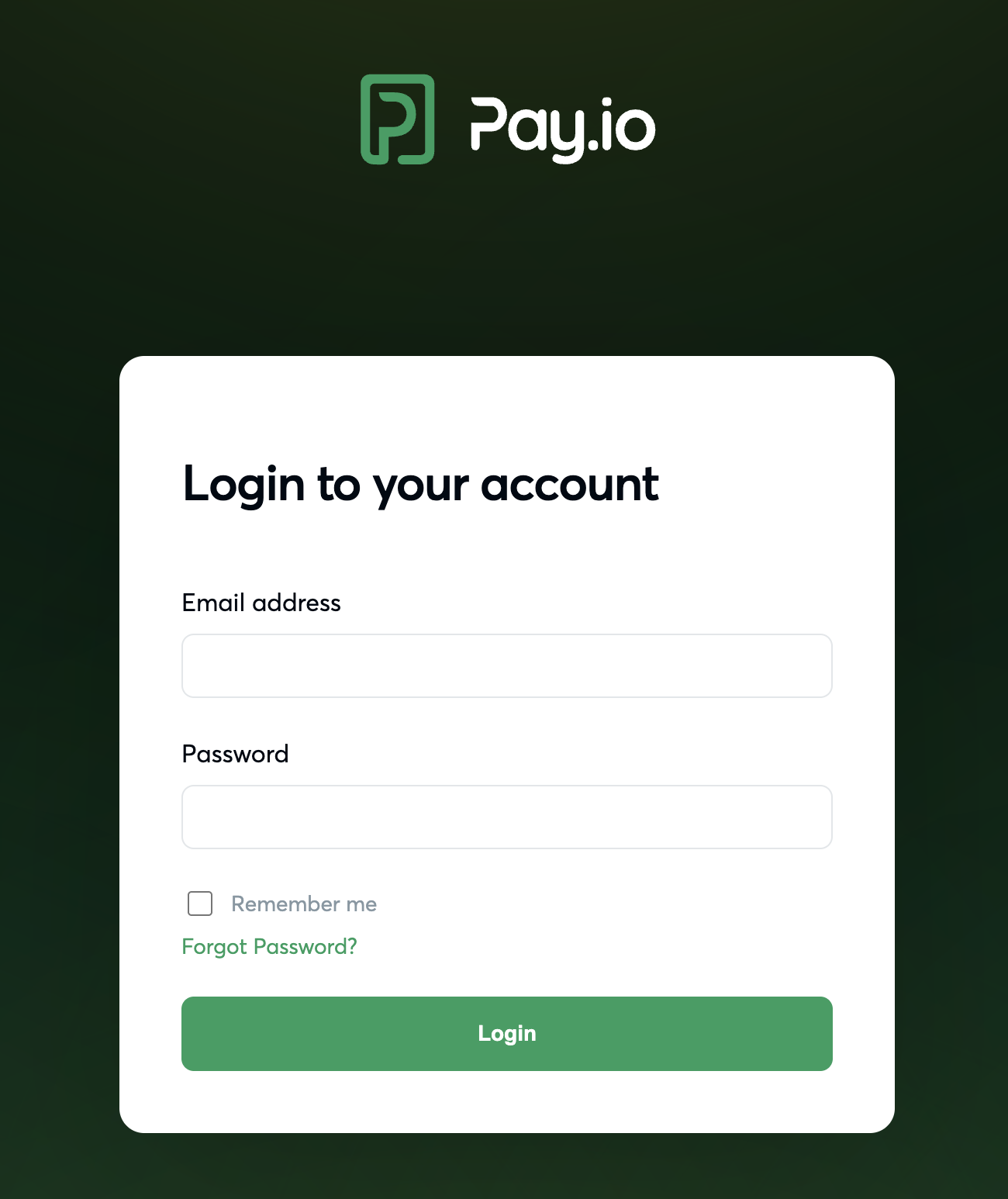
#### Initial Log In
Navigate to the Pay.io login page. Enter the temporary email address and password provided to you by your Pay.io Account Manager or Sales Representative, then click Login.
{% endstep %}
{% step %}
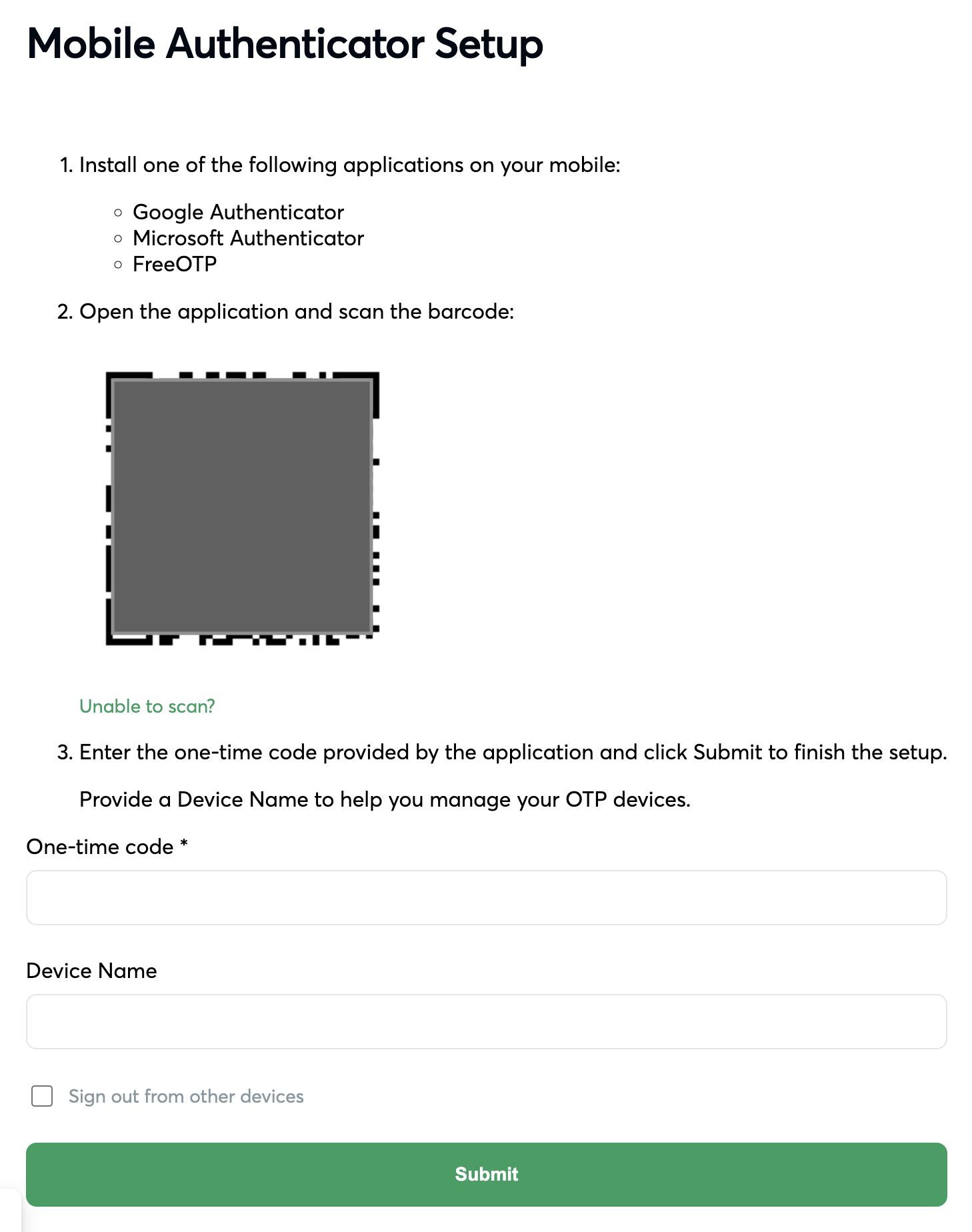
#### Configure Two-Factor Authentication (2FA)
To ensure the security of your treasury and compliance data, we require 2FA for all accounts. You will be prompted to link a mobile authenticator app.
* We support standard applications such as Google Authenticator, Microsoft Authenticator, and FreeOTP.
* Scan the QR code displayed on the screen with your chosen app to generate your code.
{% hint style="info" %}
Need help? For detailed instructions on this specific step, please refer to our guide on [Setting Up 2FA](/getting-started/setting-up-2fa-two-factor-authentication.md).
{% endhint %}
{% endstep %}
{% step %}
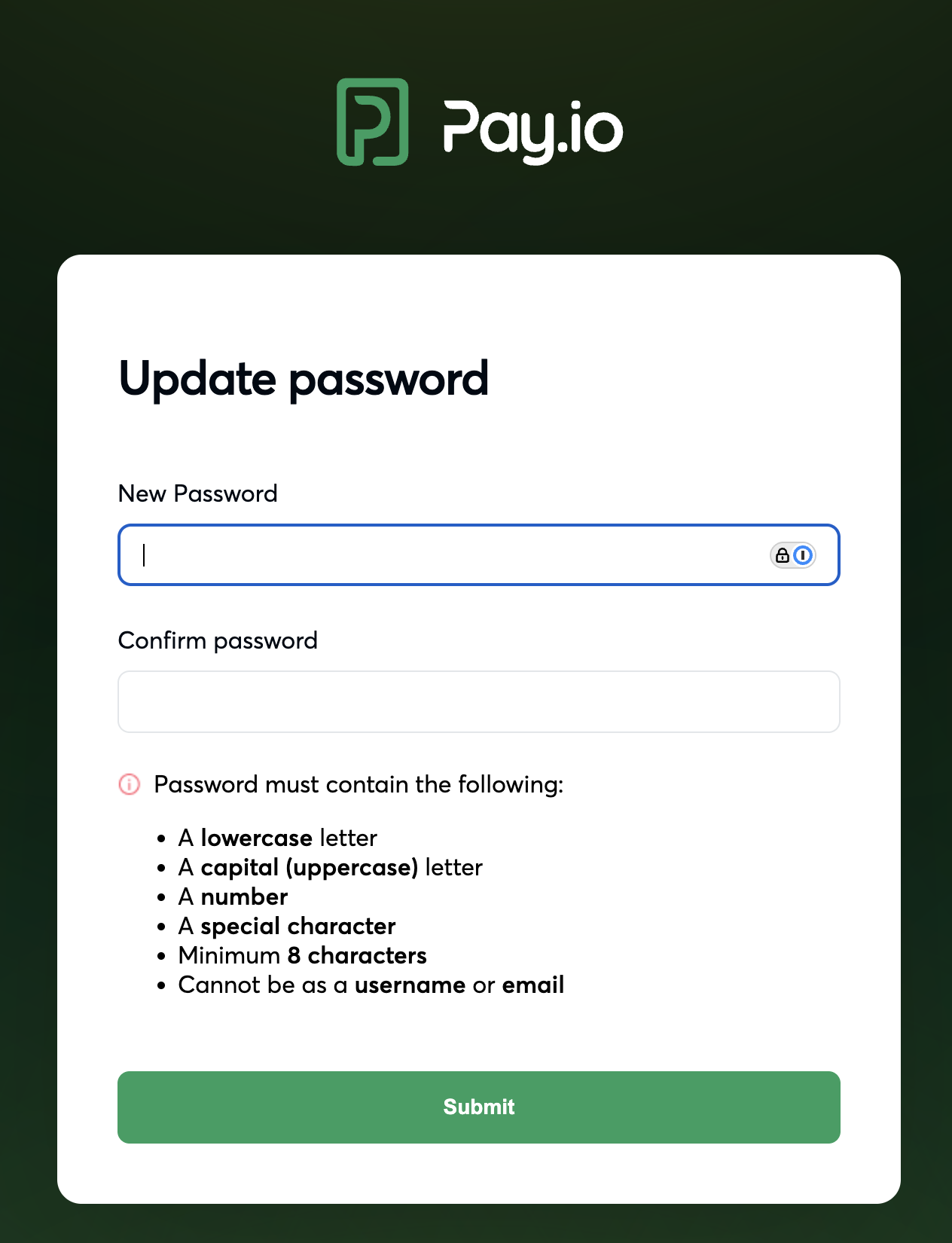
#### Update Your Password
For security purposes, you must replace the temporary credentials immediately. You will be prompted to create a new, unique password. Please ensure it meets our security complexity requirements.
{% endstep %}
{% step %}
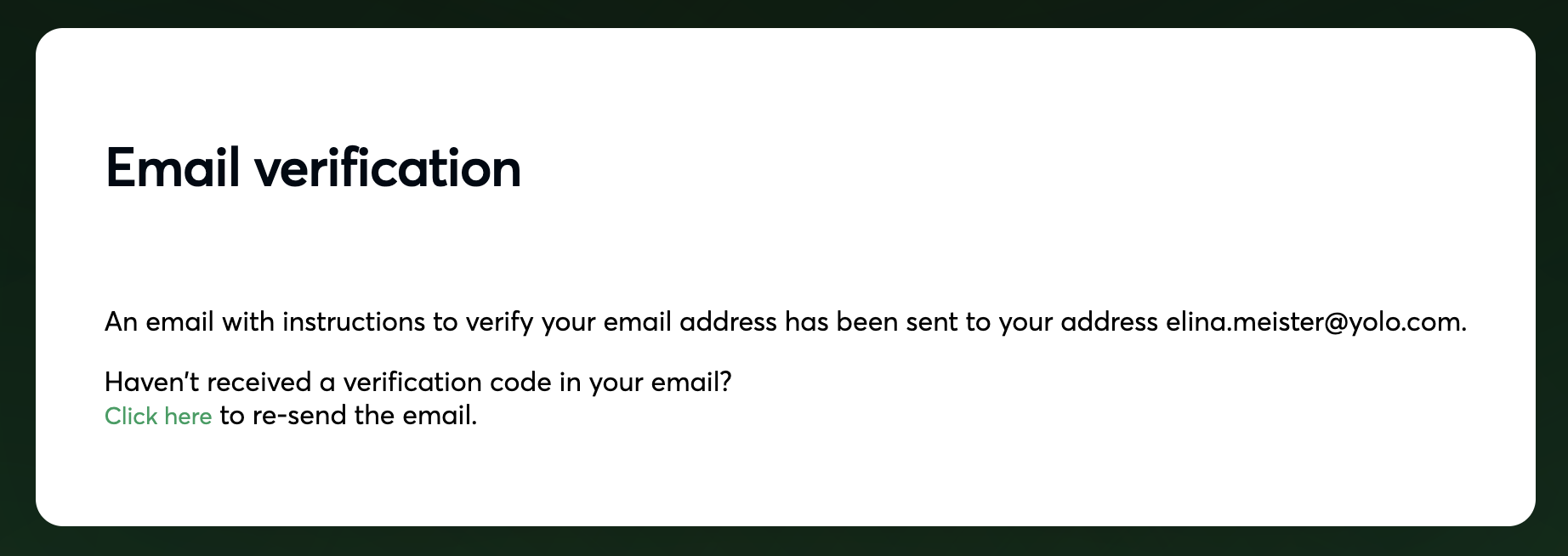
#### Verify Your Email Address
Once your password is updated, the system will automatically send a verification email to the address you used to log in.
* Check your email inbox for a message from Pay.io.
* Click the verification link contained within the email.
* This link will redirect you back to the platform, landing you directly in your Account Settings.
{% endstep %}
{% endstepper %}
You are now ready to start [onboarding](/getting-started/onboarding-process.md)! :rocket:
---
# Agent Instructions
This documentation is published with GitBook. GitBook is the documentation platform designed so that both humans and AI agents can read, navigate, and reason over technical content effectively. Learn more at gitbook.com.
## Querying This Documentation
If you need additional information that is not directly available in this page, you can query the documentation dynamically by asking a question.
Perform an HTTP GET request on the current page URL with the `ask` query parameter, and the optional `goal` query parameter:
```
GET https://docs.pay.io/getting-started/creating-an-account.md?ask=&goal=
```
`ask` is the immediate question: it should be specific, self-contained, and written in natural language.
`goal` is optional and describes the broader end goal you are ultimately trying to accomplish on behalf of the user. GitBook uses it to tailor the answer towards what is most useful for that goal.
The response will contain a direct answer to the question and relevant excerpts and sources from the documentation.
Use this mechanism when the answer is not explicitly present in the current page, you need clarification or additional context, or you want to retrieve related documentation sections.