> For the complete documentation index, see [llms.txt](https://docs.pay.io/llms.txt). Markdown versions of documentation pages are available by appending `.md` to page URLs; this page is available as [Markdown](https://docs.pay.io/account-settings/team-management-roles-and-permissions.md).
# Team Management (Roles and Permissions)
The **Team** tab within **Organisational Settings** allows Administrators to manage who has access to the Merchant Console and what they can do within it. Pay.io uses a **Role-Based Access Control (RBAC)** model to ensure that each team member has precisely the level of access their role requires.
This is particularly important in iGaming operations, where sensitive actions such as approving withdrawal requests, managing wallet limits, and handling API keys must be governed by clear accountability.
{% hint style="info" %}
**Only Administrator users can invite or remove team members and assign or update roles.**
If you need changes made to your team and do not have Administrator access, contact your organisation's Administrator.
{% endhint %}
### Accessing Team Management
From the left-hand navigation, go to **Manage Console → Settings**. Under **Organisational Settings**, select the **Team** tab.
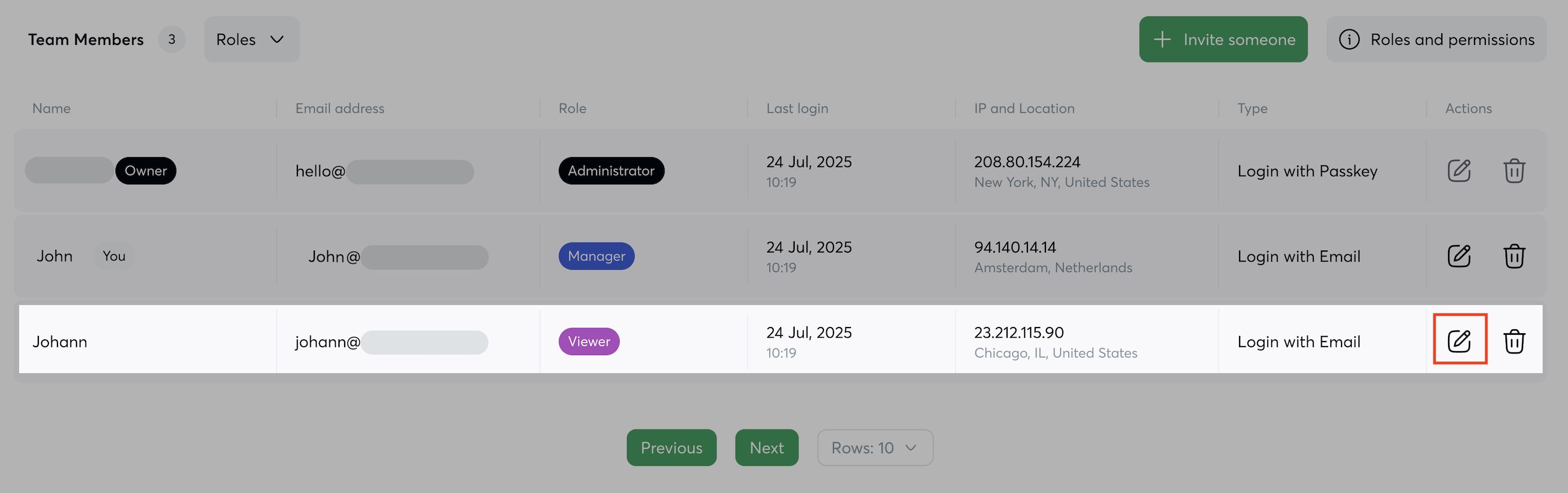
Here you will see a table of all current team members, including the following information per user:
| Column | Description |
| ------------------- | -------------------------------------------------------------------------------------------------------------- |
| **Name** | The team member's display name. The account owner is labelled **Owner**. Your own account is labelled **You**. |
| **Email Address** | The email address associated with the team member's account |
| **Role** | The role currently assigned to the team member |
| **Last Login** | The date and time of the team member's most recent session |
| **IP and Location** | The IP address and geographic location of the last login |
| **Type** | The authentication method used (e.g., Login with Email, Login with Passkey) |
| **Actions** | Edit or remove the team member |
### Understanding Roles
Pay.io defines three core roles, each granting a distinct level of access across the Merchant Console.
**Administrator**
Full access to all console features and settings. Administrators are responsible for configuring the platform, managing the team, and overseeing all operational and compliance functions.
**Manager**
Operational access for day-to-day platform management. Managers can handle wallets, transactions, and withdrawals, but cannot manage users, organisation settings, or Treasury Wallet setup.
**Viewer**
Read-only access across wallets, transactions, and reports. Viewers cannot initiate transactions, approve withdrawals, or make any configuration changes.
### Roles and Permissions Matrix
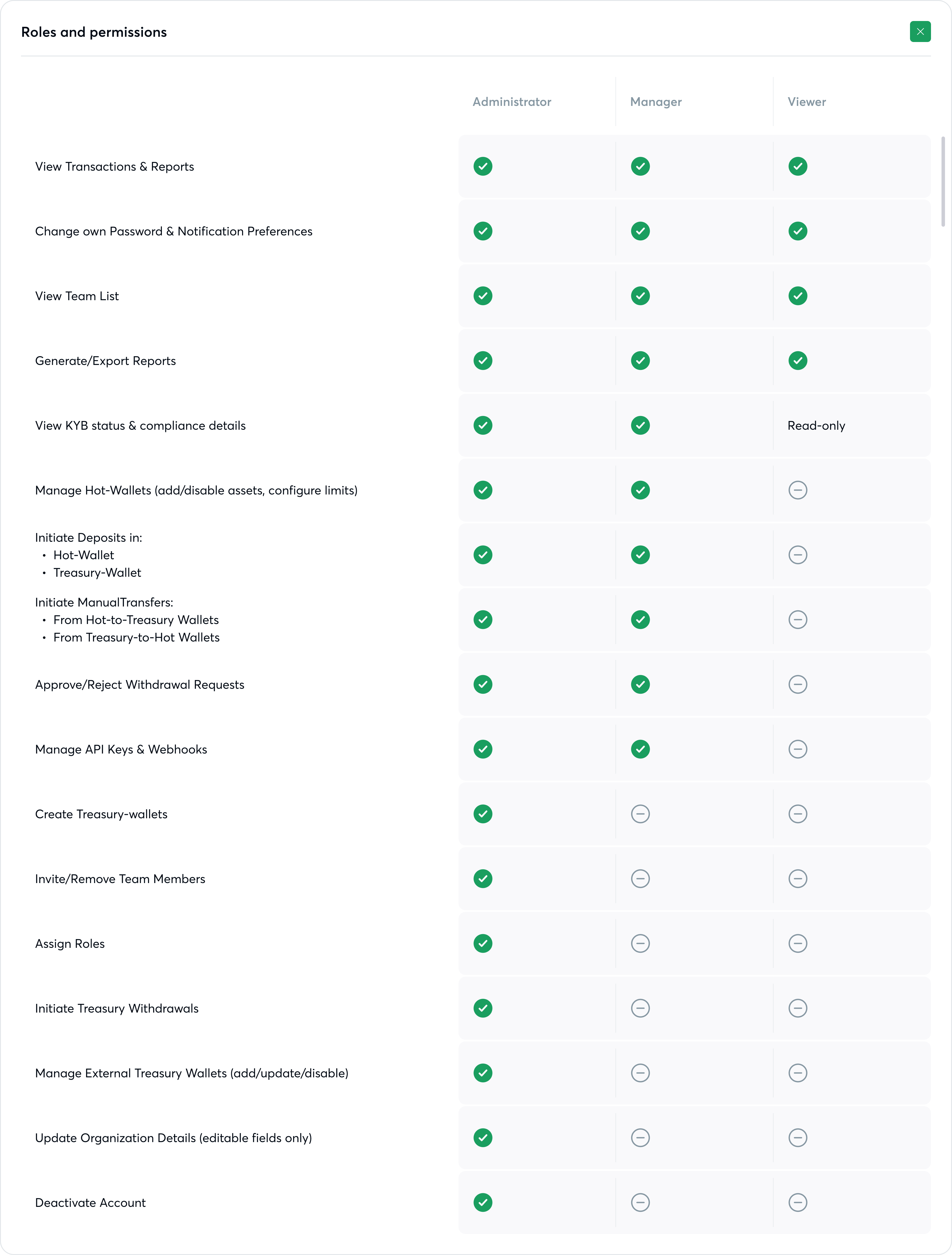
The table below details which actions are available to each role across the Merchant Console.
| Feature / Action | Administrator | Manager | Viewer |
| ----------------------------------------------------------- | ------------- | ------- | --------- |
| View Transactions & Reports | ✓ | ✓ | ✓ |
| Change own Password & Notification Preferences | ✓ | ✓ | ✓ |
| View Team List | ✓ | ✓ | ✓ |
| Generate / Export Reports | ✓ | ✓ | ✓ |
| View KYB Status & Compliance Details | ✓ | ✓ | Read-only |
| Manage Hot Wallets (add / disable assets, configure limits) | ✓ | ✓ | — |
| Initiate Deposits (Hot Wallet & Treasury Wallet) | ✓ | ✓ | — |
| Initiate Manual Transfers (Hot ↔ Treasury) | ✓ | ✓ | — |
| Approve / Reject Withdrawal Requests | ✓ | ✓ | — |
| Manage API Keys & Webhooks | ✓ | ✓ | — |
| Create Treasury Wallets | ✓ | — | — |
| Invite / Remove Team Members | ✓ | — | — |
| Assign Roles | ✓ | — | — |
| Initiate Treasury Withdrawals | ✓ | — | — |
| Manage External Treasury Wallets | ✓ | — | — |
| Update Organisation Details | ✓ | — | — |
| Deactivate Account | ✓ | — | — |
{% hint style="info" %}
You can view this matrix at any time within the console by clicking the **"Roles and permissions"** button in the top right-hand corner of the Team tab.
{% endhint %}
***
### Updating a Team Member's Role
To change the role assigned to an existing team member, click the **edit icon** in the **Actions** column of their row. Update the role assignment and save your changes. See step-by-step guide in [Invite or Remove Team Members](/account-settings/team-management-roles-and-permissions/invite-or-remove-team-members.md) page.
{% hint style="info" %}
**Role changes take effect immediately.**
Ensure the team member is aware of any changes to their access level, particularly if permissions are being reduced.
{% endhint %}
***
#### What's Next?
* [Invite or Remove Team Members](/account-settings/team-management-roles-and-permissions/invite-or-remove-team-members.md) to add new users to your organisation, or revoke access for departing team members.
* [Account Settings Overview](/account-settings/settings-overview.md) to explore all available settings for your account and organisation.
* [API Keys and Webhooks](/account-settings/managing-api-keys.md) to manage API credentials and configure event subscriptions.
---
# Agent Instructions
This documentation is published with GitBook. GitBook is the documentation platform designed so that both humans and AI agents can read, navigate, and reason over technical content effectively. Learn more at gitbook.com.
## Querying This Documentation
If you need additional information that is not directly available in this page, you can query the documentation dynamically by asking a question.
Perform an HTTP GET request on the current page URL with the `ask` query parameter, and the optional `goal` query parameter:
```
GET https://docs.pay.io/account-settings/team-management-roles-and-permissions.md?ask=&goal=
```
`ask` is the immediate question: it should be specific, self-contained, and written in natural language.
`goal` is optional and describes the broader end goal you are ultimately trying to accomplish on behalf of the user. GitBook uses it to tailor the answer towards what is most useful for that goal.
The response will contain a direct answer to the question and relevant excerpts and sources from the documentation.
Use this mechanism when the answer is not explicitly present in the current page, you need clarification or additional context, or you want to retrieve related documentation sections.
.png?alt=media&token=c922953d-cd42-4674-9def-1a80abd43d04)